General
WhoCalls will
use a device or your SIP VoIP service to detect the CallerID of a calling party.
WhoCalls will not answer the call, just display the caller information (if
transmitted).
After
startup the application displays an icon in the System Tray (Right part of task
bar).

By
right clicking on this icon you can access the menu of the application. Clicking
on the close
 icon
will not exit the application but minimize it. To quit select File->Exit.
icon
will not exit the application but minimize it. To quit select File->Exit.
WhoCalls can work either in active mode or in passive mode.
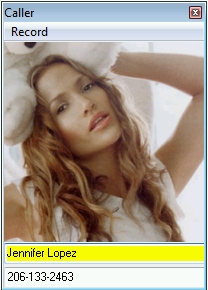
In
active mode WhoCalls uses its own database to display caller information and the
associated picture of a caller.
To
add a new entry
first
select the Record->New option,
enter
the Display name and the CallerID
then
select Save changes.
The
CallerID is the 10-digit phone number formatted as phone number.
The associated
photo for a record can be selected by double-clicking on the photo itself.
For callers not yet
in the database, the system chooses the default picture (default.bmp).
The passive mode allows you to use an external database or application to store you caller information. WhoCalls will monitor the incoming line as usual but when a call is detected, transfer the CallerID to the selected external application through ActiveX or DDE. To set up which application the CallerID is transferred to, click the Setup button.
See the passive mode samples section for examples on how to use the passive mode.
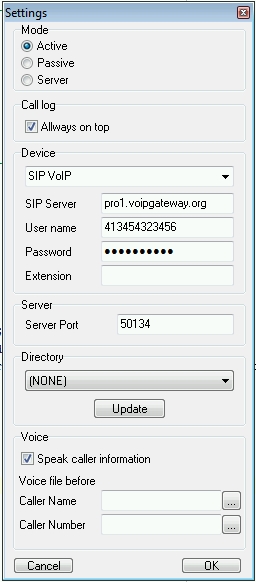
The settings window
allows you to configure all aspects of WhoCalls.
| Mode | Define here if you want to run WhoCalls in active, passive or server mode |
| Device |
WhoCalls will scan
the Windows device database and list all devices configured there. Just choose
your device from the list. Please make sure that you have
configured your device with the latest driver.
Once you get your host name, account user name and password, simply add it in the provided fields. |
| Call log | Enable this option to display the call log for every new call and leave it open. This allows you to monitor the last calls that were received. |
| Server Port | This is the port to be used for the communication between the server and the client when running in server mode |
| Directory | If the Caller Name is not transmitted by the phone (normal case) , WhoCalls will try to access an internet directory of the selected country to retrieve the stored information for the Caller Number received. You need to select a directory of your country here for this option to work. As we continuously try to add new directories, you may also Update this list. If your country is still not on the list, contact us and we will se if we can add it. |
| Voice | If you select the option Speak caller information,
WhoCalls will playback the received information on your loudspeaker. The
actual information is preceded by the voice files you can select below. For more options on changing the voice for the read back please refer to the Windows control panel under Speech-> Text To Speech or go to the Microsoft Speech web site. Here you can also download other voices and/or languages. |
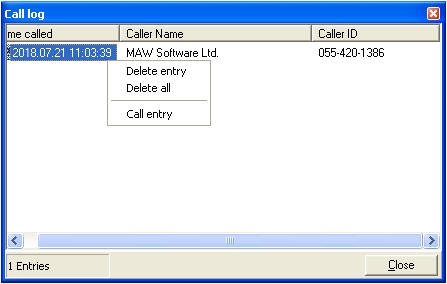
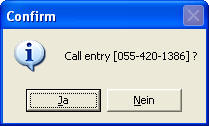
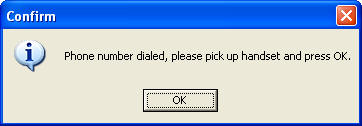
The Call log displays a list of the last calls received. By right-clicking on an entry you can also select the option "Call entry". This will dial the number of the received call and you may pick up the handset to talk to the caller.
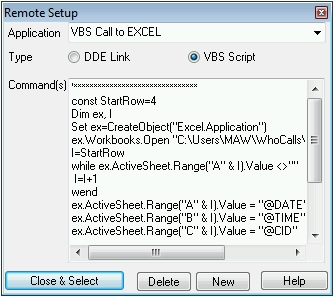
WhoCalls comes with pre-configured samples for MsAccess, Excel, MySQL, TimeMatters and Outlook. You can add a new application by selecting the NEW button and entering the required information.
WhoCall can connect to the external application through DDE or ActiveX (by calling a Visual basic script). Please note that DDE should not be used anymore as it is an outdated technology now. The DDE samples here are given only for reference, in the case your application still requires a DDE connection.
By pressing the Close&Select button the selected application setting becomes the active setting.
The following variables are predefined and can be used to transfer the caller information to the remote application:
|
@CID |
Caller
ID number string
(if supported) |
VBS
Call
to
Excel
This Excel sample
uses the Samples\CallLog.xls database to record the caller information for an
incoming caller. It is a simple example that logs every call through its
date/time and CallerID. The advantage of using VBS rather than DDE is that Excel
does not need to be kept open.
The syntax is exactly the normal VBS (Visual Basic Script) syntax except that
the variables are replaced before the execution of the script.
const StartRow = 4 'First row to use
Dim ex, I
Set WSHShell = CreateObject("WScript.Shell")
sCurPath = WSHShell.RegRead("HKCU\Software\MAW Software\WhoCalls\" )
Set ex=CreateObject("Excel.Application")
ex.Workbooks.Open
'Find first empty Line
I=StartRow
while ex.ActiveSheet.Range("A" & I).Value <>""
I=I+1
wend
'Record values
ex.ActiveSheet.Range("A" & I).Value = "@DATE" 'Set Time
ex.ActiveSheet.Range("B" & I).Value = "@TIME" 'Set Date
ex.ActiveSheet.Range("C" & I).Value = "@CID" 'Set CallerID
ex.ActiveSheet.Range("D" & I).Value = "@CIN" 'Set CallerID Name
ex.ActiveSheet.Range("E" & I).Value = "@PORT" 'Set Port
ex.ActiveWorkbook.Save
ex.Quit
WScript.Quit(0)
VBS Call to
MSAccess
This sample
uses the Samples\CallerCenter.mdb database to record the caller information for an
incoming caller. It is a simple example that logs every call through its
date/time and CallerID. The advantage of using VBS rather than DDE is that
MsAccess
does not need to be kept open.
The syntax is exactly the normal VBS (Visual Basic Script) syntax except that
the variables are replaced before the execution of the script.
Dim AccApp, dbs, rst
Set WSHShell = CreateObject("WScript.Shell")
sCurPath = WSHShell.RegRead("HKCU\Software\MAW Software\WhoCalls\" )
Set AccApp= CreateObject("Access.Application")
AccApp.OpenCurrentDatabase(sCurPath & "\samples\CallerCenter.mdb")
Set dbs = AccApp.CurrentDb
Set rst = dbs.OpenRecordset("SELECT * FROM CallLog")
rst.AddNew
rst.dDate ="@DATE" 'Set Time
rst.tTime ="@TIME" 'Set Date
rst.cCID ="@CID" 'Set CallerID
rst.cCIN ="@CIN" 'Set CallerID Name
rst.Update
'Clean up
rst.Close
dbs.Close
set rst = Nothing
set dbs = Nothing
AccApp.Quit
set AccApp = Nothing
VBS Call to Outlook
This sample shows on how to send the CallerID information to MsOutlook to
display the associated Outlook entry.
Please refer to the VBS code for more information.
Note(s):
VBS Call to MySQL
This sample connects to a MySQL database to
transmit the received information.
Please refer to the VBS code for more information.
Please note that DDE should not be used anymore as it is an outdated technology now. The DDE samples here are given only for reference, in the case your application still requires a DDE connection.
DDE to MsAccess
The MsAccess sample
uses DDE and the Samples\CallerCenter.mdb database to display the caller information of
an incoming caller.
If MsAccess is not
yet running it will be started by using the information in the EXE Path and DB
Path field of the Setup.
No data will be
"poked" (transferred) as all data transfer is handled by the commands.
|
1 |
;Note: @CID
is the 10 digit number with no formatting |
Line 1 shows the
usage of a comment by using a semicolon in front of the line.
Line 2 requests MsAccess to emit a beep.
Line 3 runs a SQL
query that adds the Date, Time and CallerID information to a table called
CallLog in MsAccess. This table will be used to monitor the frequency of the
calls received by every caller.
Line 4 opens the
form Customers and displays the record with the matching CallerID.
Line 5 runs a macro
that enters the CallerID information into the right field if a new record is
created.
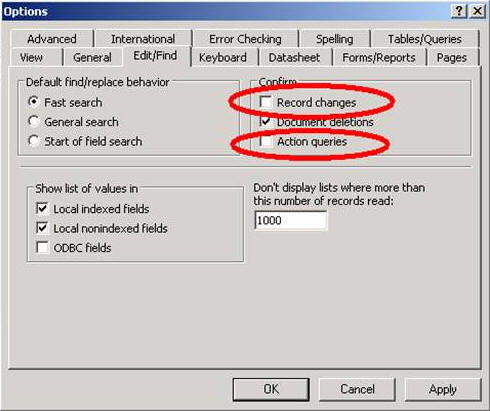
Note:
For the sample to
work correctly it is important to change the security settings of MsAccess to allow the running of macros without asking for your permission.
(Tools->Macro->Security->Low) and to also disable
Options->Edit/Find->Confirm: Record changes
and
Options->Edit/Find->Confirm: Action queries.
DDE to Excel
The Excel sample
uses the Samples\CallLog.xls database to record the caller information for an
incoming caller. It is a simple example that logs every call through its
date/time and CallerID.
If Excel is not yet
running it will be started by using the information in the EXE Path and DB Path
field of the Setup
The "Poke data" field is set to
@DATE{TAB}@TIME{TAB}@CID{TAB}@CIN{TAB}@PORT
which sends the Date, Time, CallerID, CallerName and Port information across five columns, the destination being from cell R3C1 to R3C5.
Then two commands are executed.
|
|
;Shifts the
data down to make place for the next entry |
Line 1 selects the cells R3C1 to R3C5 and Line 2 inserts an empty line above. This ensures that the next time information is transmitted it will not overwrite the previous data.
WhoCalls can also run in server
environment. This means that you may have WhoCalls running on one PC with a
modem attached and distribute the received caller information to other PCs
running WhoCalls in client mode. The clients do not need to have a modem as they
receive the required information over the network.
The following schema shows a possible configuration:
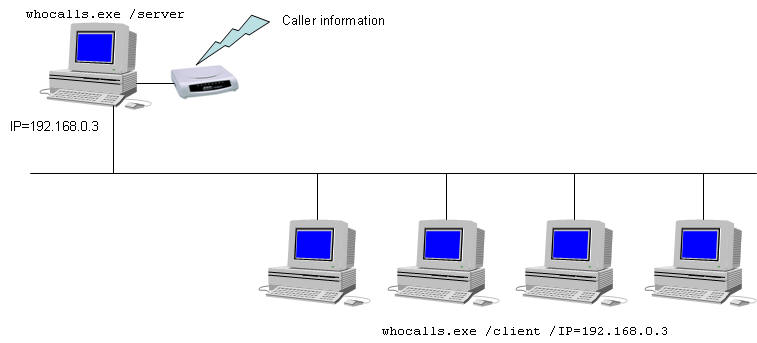
The server starts WhoCalls with the
/server command line while
the clients start it with /client
and the IP address of the server.
The server can still be used as normal WhoCalls station in
active or passive
mode. If the server only acts as gateway without displaying any information,
then select the server mode in the settings.
IMPORTANT: Please make sure that the port used for the communication between the client and the server (Default: 50134) is not blocked by a firewall, this for the server and all the clients. Instead of opening the port you can also enable the communication for the two processes ..\whocalls\WhoCalls.exe and ..\whocalls\WhoCallsService.exe)
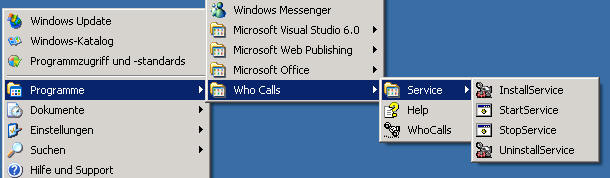
For additional security you
can also run the WhoCalls server as Windows service. This will run the WhoCalls
server as background task and just let it distribute its information it receives
through the modem.
To install WhoCalls as service please follow those steps:
Start WhoCalls.exe without command line.
Configure the modem, server port and directory you want to use in the settings.
Close WhoCalls.exe
Install the service with the short cut provided under ..\WhoCalls\Service\InstallService
Important: Configure the service in the Windows Service Manager to run under the same user account as you have installed the interactive version
Start the service with the short cut provided under ..\WhoCalls\Service\StartService
Check with the Taskmanager that the process WhoCallsService.exe is running. If not please go to the Windows services and try to start the service manually.
From then on the service will start every time you start your computer. To uninstall the service again please follow those steps:
Stop the service with the short cut provided under ..\WhoCalls\Service\StoptService
Uninstall the service with the short cut provided under ..\WhoCalls\Service\UninstallService
DDE has three parts: the name of the application; the file name or topic; and
the cell range, value, field, or data that's referred to. The following
illustration shows the parts of a remote reference formula and the use of the
required separator character (|).
Topic:
Excel|Sheet1
You
can either get data form a DDE server, send data to the DDE server or execute a
macro on the DDE server.
Note(s):
To order a copy of WhoCalls or to check its current price, please go to
www.mawnet.com/order.html
After your order has been approved, you will receive from us within 24 hours an e-mail with your serial key that unlocks your evaluation copy into a fully licensed version. This key also entitles you to future upgrades, so please store it in a safe place.
Support
For all support questions please refer to our support forum
on www.mawnet.com/support.html
MAW Software Ltd. International
E-Mail
info@mawnet.com
(general inquiries)
Web https://www.mawnet.com
European Headquarters Switzerland
MAW Software Ltd.
Weidstrasse 27
8808 Pfäffikon
Switzerland
| Phone: Fax: |
+41-(0)55-4201386
+41-(0)55-4201387 |
UK Support line
| Phone: Fax |
+44-(0)7092288534 +44-(0)7092288539 |